Guides & Tutorials
Step-by-step walkthroughs of every feature in MD Reader, from opening your first .md file to writing LaTeX math and using the on-device AI assistant. Every screenshot is from the real app on Mac and iPhone.
Open & Associate Your .md Files
Make MD Reader the home for every Markdown document.
- Launch MD Reader and choose Open… to pick any
.mdor.markdownfile from your Mac or iPhone. - On iPhone, browse to a document in the Files app, tap it, and choose MD Reader to open it instantly.
- On Mac, right-click a Markdown file in Finder, choose Open With → MD Reader, or set it as the default via Get Info → Open with → Change All…
- Your document opens straight into the reading view with headings, lists, tables, and math fully rendered.
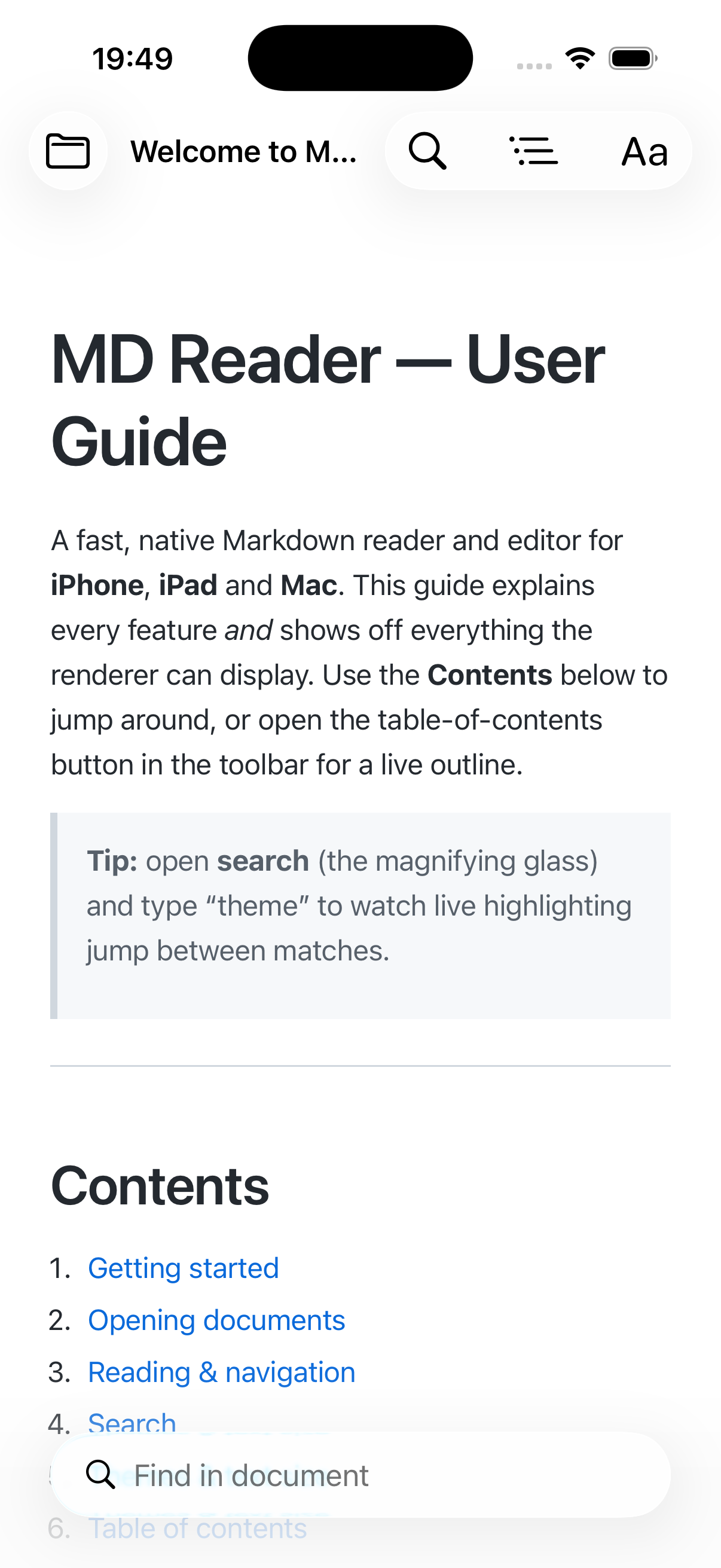
.md and .markdown file types, you can double-click a document anywhere and it opens straight in the app.
Edit with Live Preview
Write on one side and watch it render on the other.
- Switch to edit mode to reveal the editor and the live preview side by side.
- Type Markdown on the left — headings, bold, italics, links, lists, tables, task lists, and quotes — and the preview on the right updates as you type.
- Use the VS Code-style command palette to jump to any action without leaving the keyboard.
- Save your changes back to the original file when you are done; on Mac the full menu bar and native shortcuts are available.
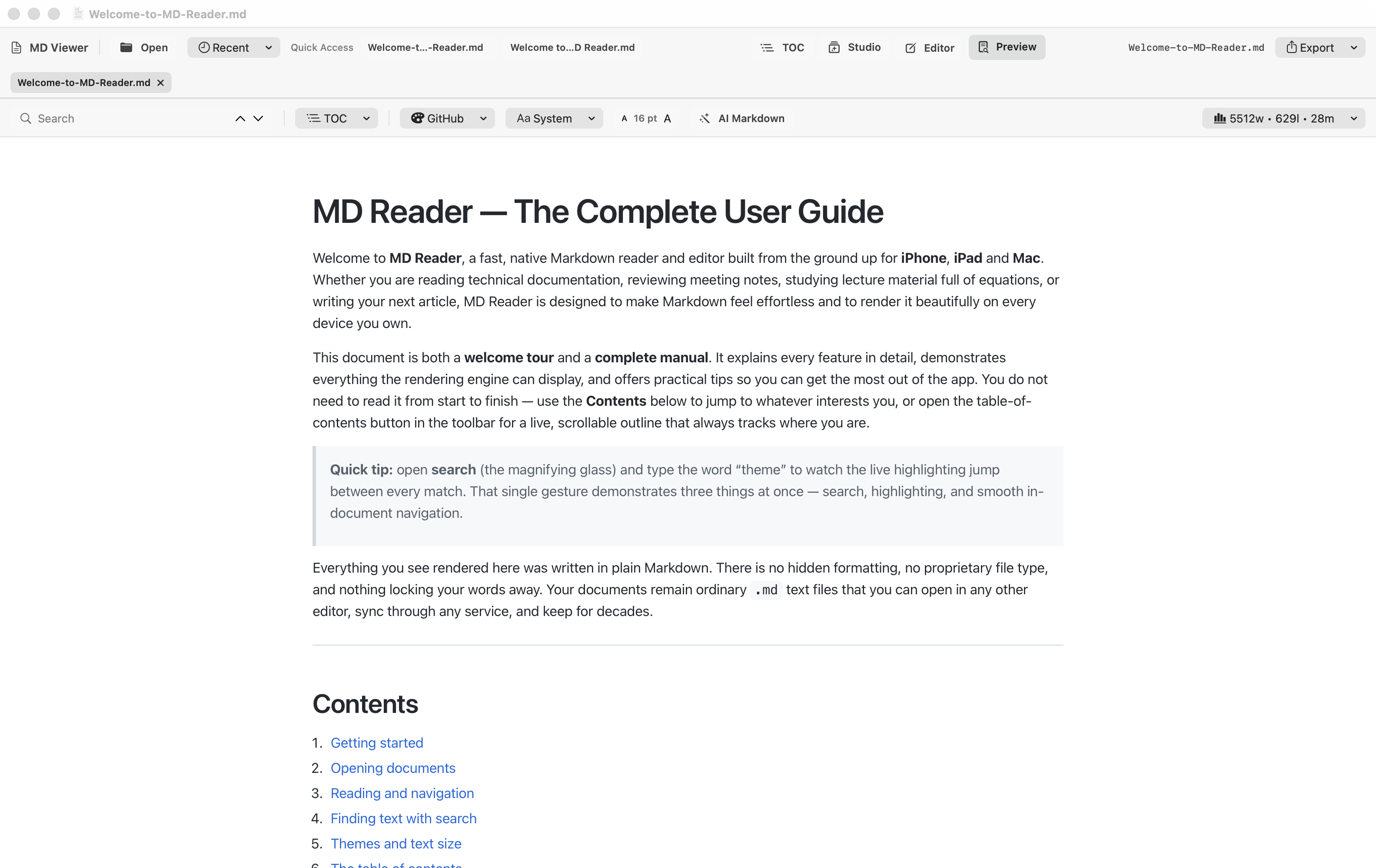
Navigate with the Table of Contents
Jump to any section of a long document in one tap.
- MD Reader builds a navigable table of contents automatically from your headings (
#,##,###…). - Open the contents panel to see the full outline of the document, nested by heading level.
- Tap or click any entry to jump straight to that section in the preview.
- Keep the panel open while you read long technical notes to always know where you are.
Write Math with LaTeX
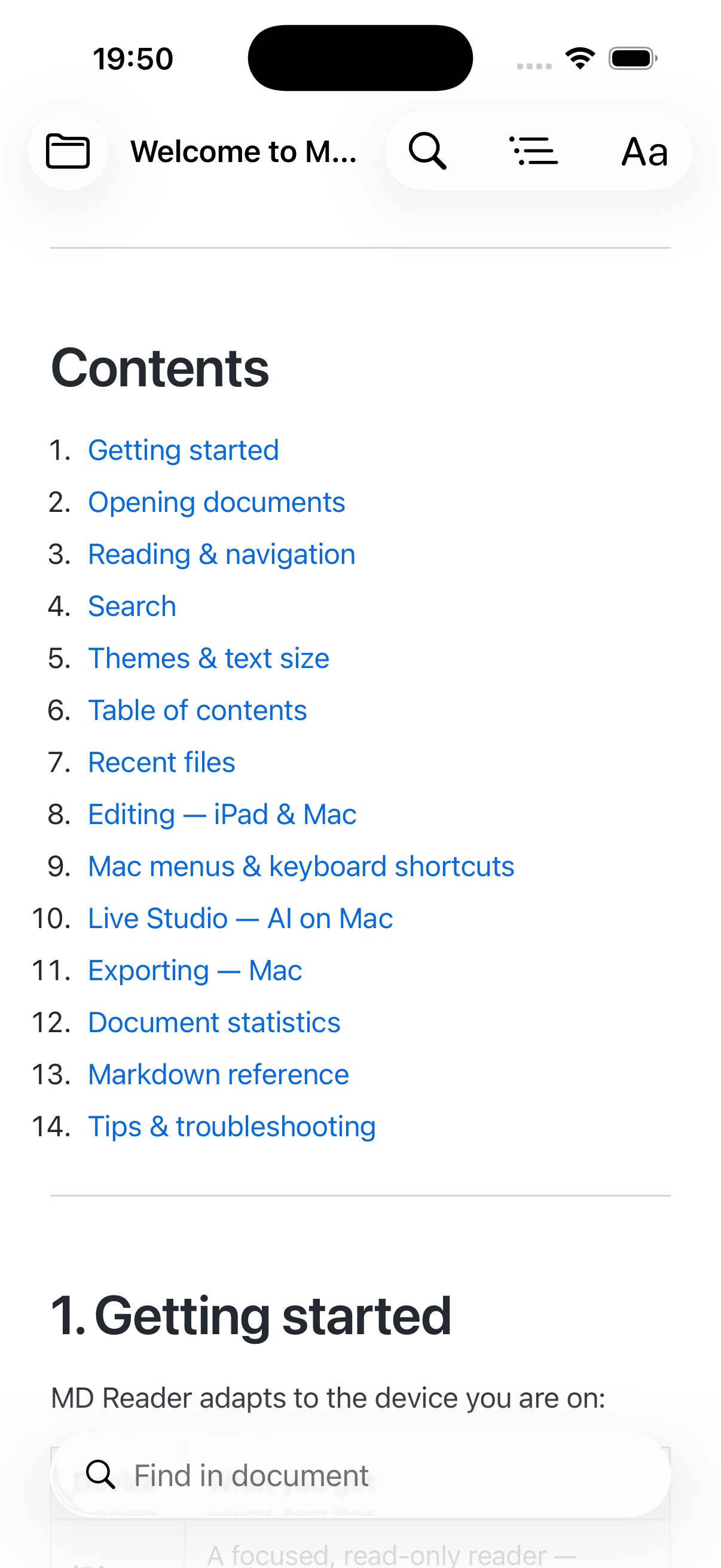
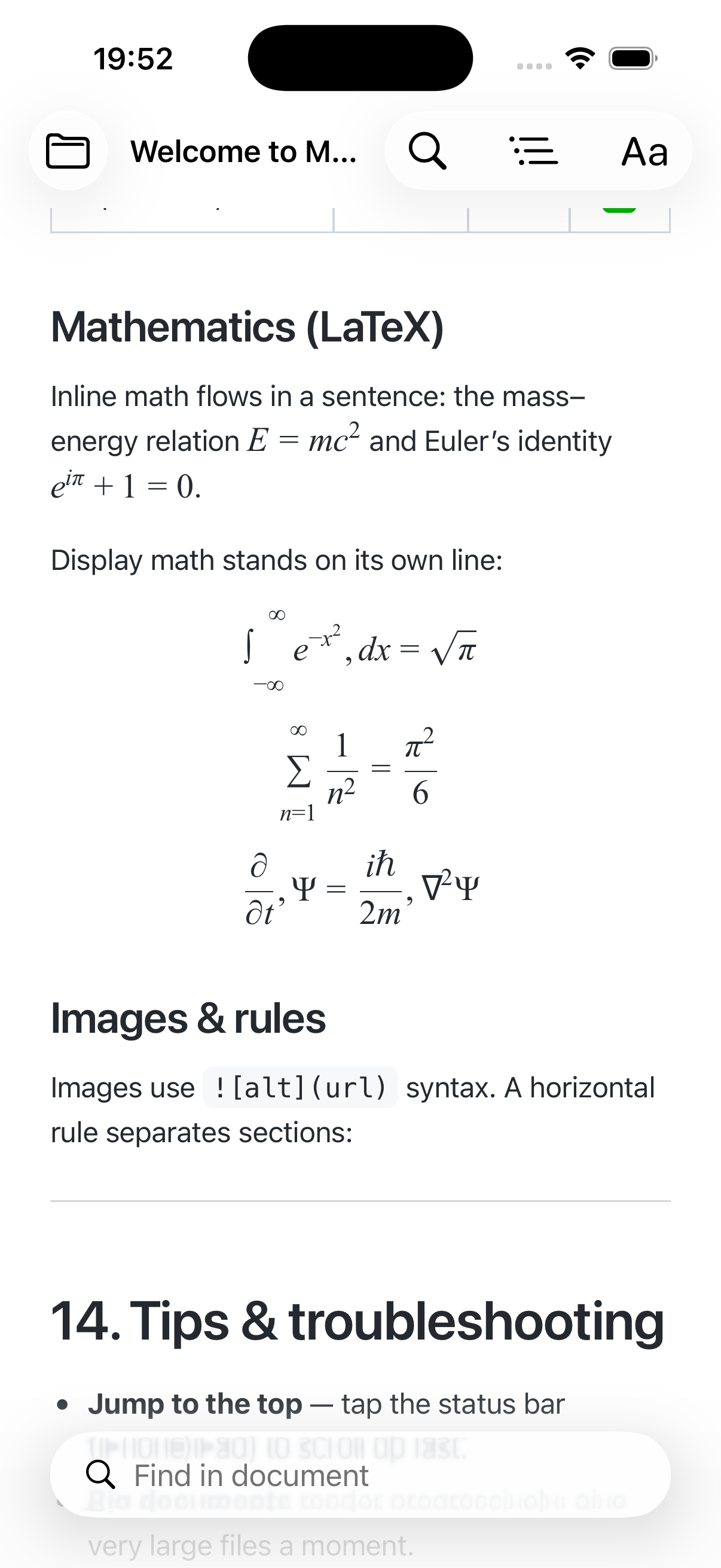
Render beautiful equations with KaTeX, inline and in display.
- Wrap inline math in single dollar signs:
$E = mc^2$. - Use double dollar signs for centered display equations:
$$\int_0^\infty e^{-x}\,dx = 1$$. - MD Reader renders both with KaTeX in real time, so your formulas appear crisp in the preview.
- Mix math freely with text, tables, and code — it all renders together in the same document.
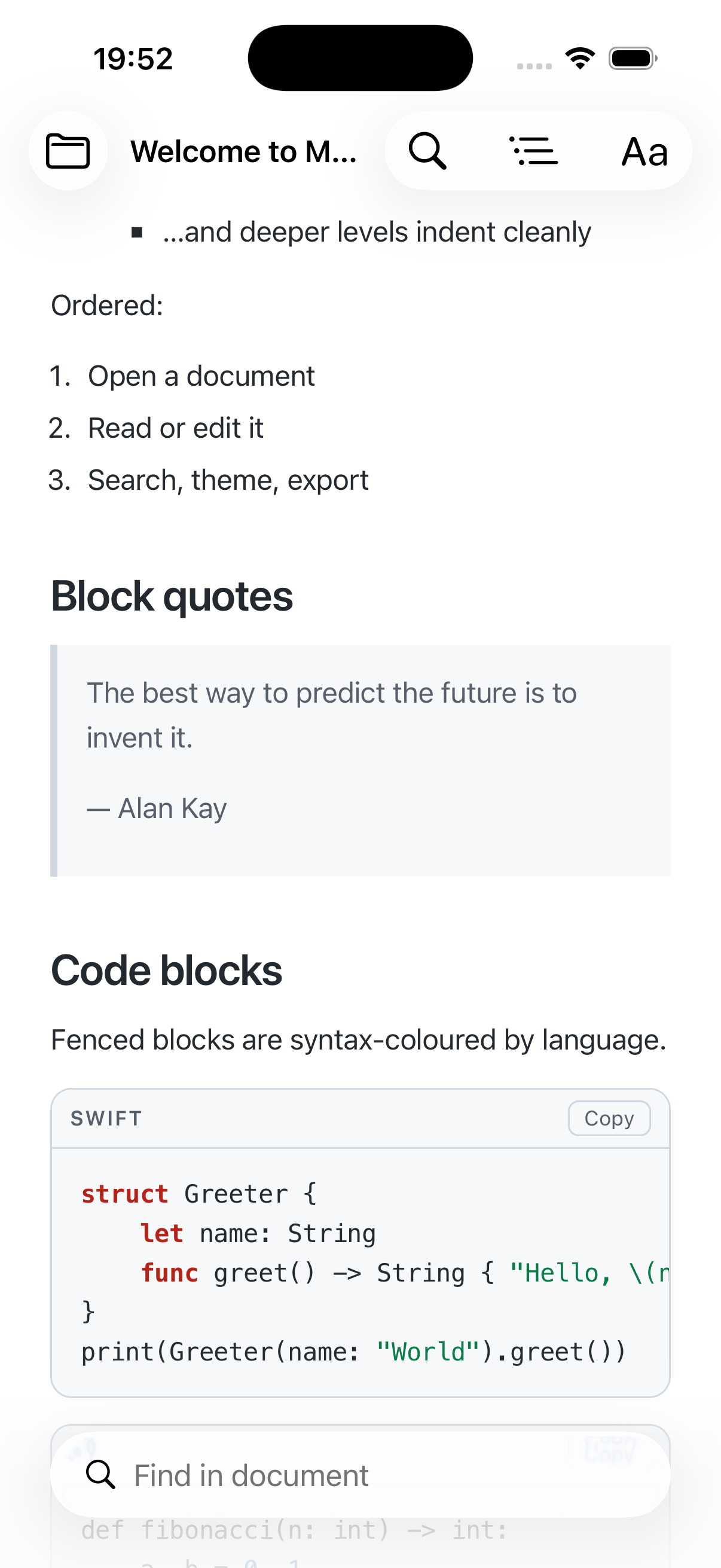
Code Blocks & Syntax Highlighting
Share code that reads as cleanly as it does in your editor.
- Create a fenced code block with triple backticks and add the language for highlighting, e.g.
```swift. - MD Reader colors the syntax for Swift, Python, JavaScript, and many more languages.
- Use inline code with single backticks for short snippets like
`let x = 1`. - Combine code blocks with tables, task lists, and quotes to write clear technical documentation.
Search Inside a Document
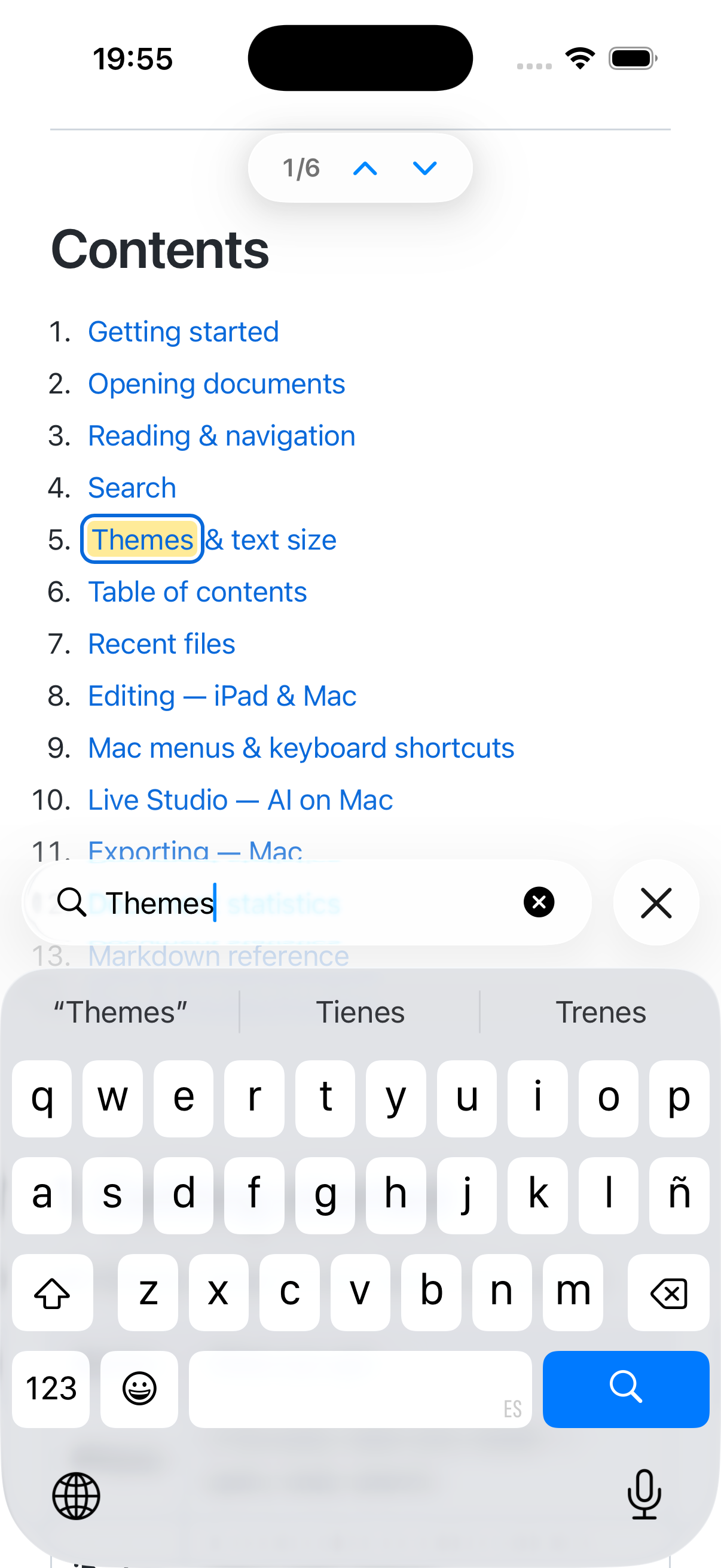
Find any word in seconds, with matches highlighted.
- Open in-document search and type the word or phrase you are looking for.
- Every match is highlighted directly in the rendered document so it is easy to spot.
- Step through the results to move from one match to the next.
- Search works the same way on Mac and iPhone, so long documents stay manageable everywhere.
Keyboard Shortcuts & Themes
Work faster on Mac and read comfortably day or night.
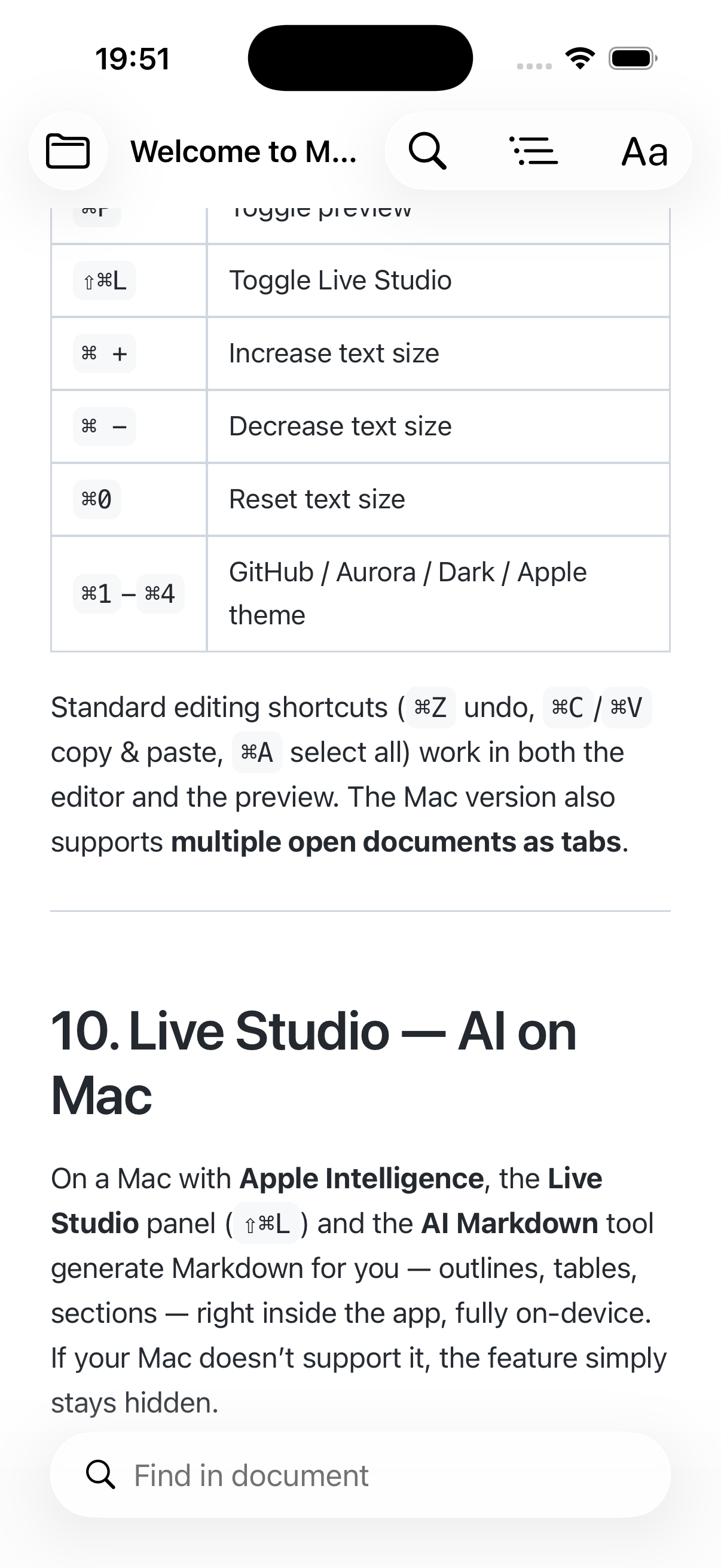
- On Mac, use native keyboard shortcuts and the full menu bar to open, save, search, and format without reaching for the mouse.
- Open the command palette to discover and trigger any action by name.
- Switch between light and dark themes to keep reading comfortable at any hour.
- The same shortcuts and menus that make sense on macOS work the way you expect from a native app.
Use the On-Device AI Assistant
Generate Markdown locally — your text never leaves your device.
- Open the AI assistant and type an instruction, such as "create a comparison table" or "write the quadratic formula".
- MD Reader generates ready-to-use Markdown right in the editor, with all math written in LaTeX so it renders instantly with KaTeX.
- Review the result and insert it into your document; edit it like any other Markdown.
- Everything runs on Apple Intelligence's on-device Foundation Models — there are no servers, no API keys, and your text stays private.
Still have a question?
Browse the FAQ for quick answers about formats, math, AI, and privacy, or get in touch and we will help you out.